
Overview
Warning: Use the AUR at your own risk!
No support will be provided by the Condres team for any issues that may arise relating to software installations from the AUR.
With Condres updates, AUR packages might stop working. This is not a Condres issue.
Although Condres is very close to Arch Linux and mostly compatible —being based on Arch Linux itself— it is not possible to access their official repositories for use in Condres.
Instead, Condres uses its own repositories in order to ensure that any software packages that are accessible, such as system updates and applications, have been fully tested to be compatible and stable before release.
It is still possible to access additional software packages from the Arch User Repository (AUR).
The AUR is managed by the Arch Linux user community itself. Although this repository is unofficial, software packages first placed here can eventually make their way into Arch Linux’s official (community) repository if they become popular enough.
AUR, as a community maintained repository, present potential risks and problems.
Possible risks using AUR packages:
- Multiple versions of the same packages.
- Out of date packages.
- Broken or only partially working packages.
- Improperly configured packages which download unnecessary dependencies, or do not download necessary dependencies, or both.
- Malicious packages (although extremely rare).
As such, although much of the software packages provided by the AUR should work, do not expect the installation process to always be quite as straight-forward as when you are using the official Condres repositories.
On occasion, it may be necessary to manually identify and install dependencies yourself (such as, after an aborted installation attempt).
Again, there is no guarantee that any installed software will work properly, if at all.
Using GUI Octopi
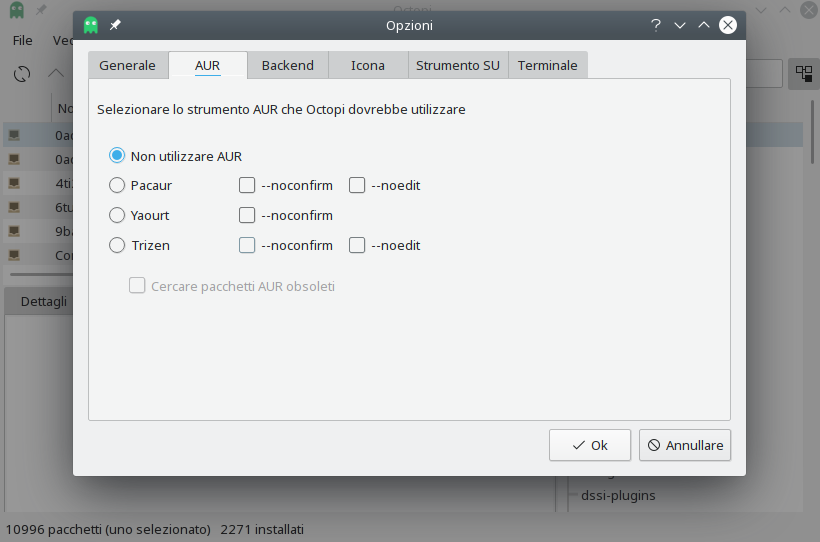
Using commandline
Tip: It is strongly recommended to first visit the AUR website and examine the relevant page(s) for any and all software intended to be installed.
These pages contain comments from both existing users and package developers, which may provide valuable information (such as, warnings and/or solutions to problems).
The AUR website can be found here
Yay must be used in the terminal and is itself very similar to pacman to use; furthermore, as with trizen or yaourt, it is not necessary to specify precise or complete package names in order to search for or download software. To search for and install software packages from the AUR, the syntax is:
yaourt -S  visual-studio-code-bin
or
trizen -S  visual-studio-code-bin
Installing from the AUR by hand
Manual
To do that follow the steps given below:
- Be sure you have the necessary files for building applications from source
pacman -S base-devel git
- Download the tarball from the AUR preferably to ~/Downloads
(just click on the tarball from your browser and you should get it)
- Make a sub-directory in downloads called builds:
mkdir ~/Downloads/builds
— Move the tarball to builds (Note that foo is a placeholder for the actual name of the package you’ve downloaded):
mv foo.tar.gz builds
— Change directory to the builds folder-
cd builds
— Untar the tarball
tar -xvf foo.tar.gz
— Move into the new sub-directory
cd <foo>
- To make/compile the package, run:
makepkg -s
This will build the package and pull in any dependencies needed. Note: it won’t pull a dependency from the AUR, only from the Condres Repos.
If you run
ls
you’ll probably find a few new files. You’re interested in the one that ends with .pkg.tar.xz (usually)
- The final event is running $sudo pacman -U on that file-
sudo pacman -U foo.pkg.xz
And you’ve done it…the safest way to install from the AUR.
This is essentially what most install scripts do for you.
Note: Instead of using sudo pacman -U foo.pkg.xz can also use:
makepkg -i
Note: To combine above steps into one:
makepkg -is